Using the GlobalProtect VPN App for iOS (iPhone, iPad)
Summary
Read this article to install and use the GlobalProtect App on iPhones & iPads
Body
- Go to the App store and install the Global Protect app for your iOS device, or use this link.

- Open the app, and if prompted to allow notifications, select Allow.

- Enter rvpn.bju.edu as the portal address and tap Connect.

- When prompted to “Add VPN Configurations,” click Allow and authorize when prompted.

- Multi-factor authentication is enabled for VPN. On the Sign in page, enter your BJU email address and click Next.
- When prompted, enter your BJU password and click Sign in.
- Next Verify your identity using one of the authentication methods you have set up. Upon verification, you should be logged in to GlobalProtect.
- You can close the informational pop-ups. The GlobalProtect screen should be blue and say “CONNECTED.” At the top of the screen, you should also see “VPN.”
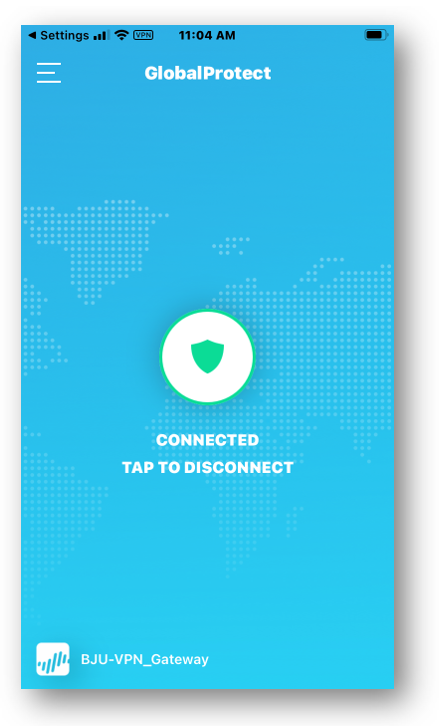
- You are now securely connected. You can close the app and use your device as you normally would.
- To disconnect, open the GlobalProtect app and tap the shield button in the center of the screen. The screen will turn gray to show that you are disconnected.
- To reconnect, open the app and tap the shield button in the middle of the gray screen.
Details
Details
Article ID:
16607
Created
Tue 10/21/25 10:41 AM
Modified
Fri 10/9/26 1:56 PM